
Comments
You can add a comment at any point in the video or on a text block.
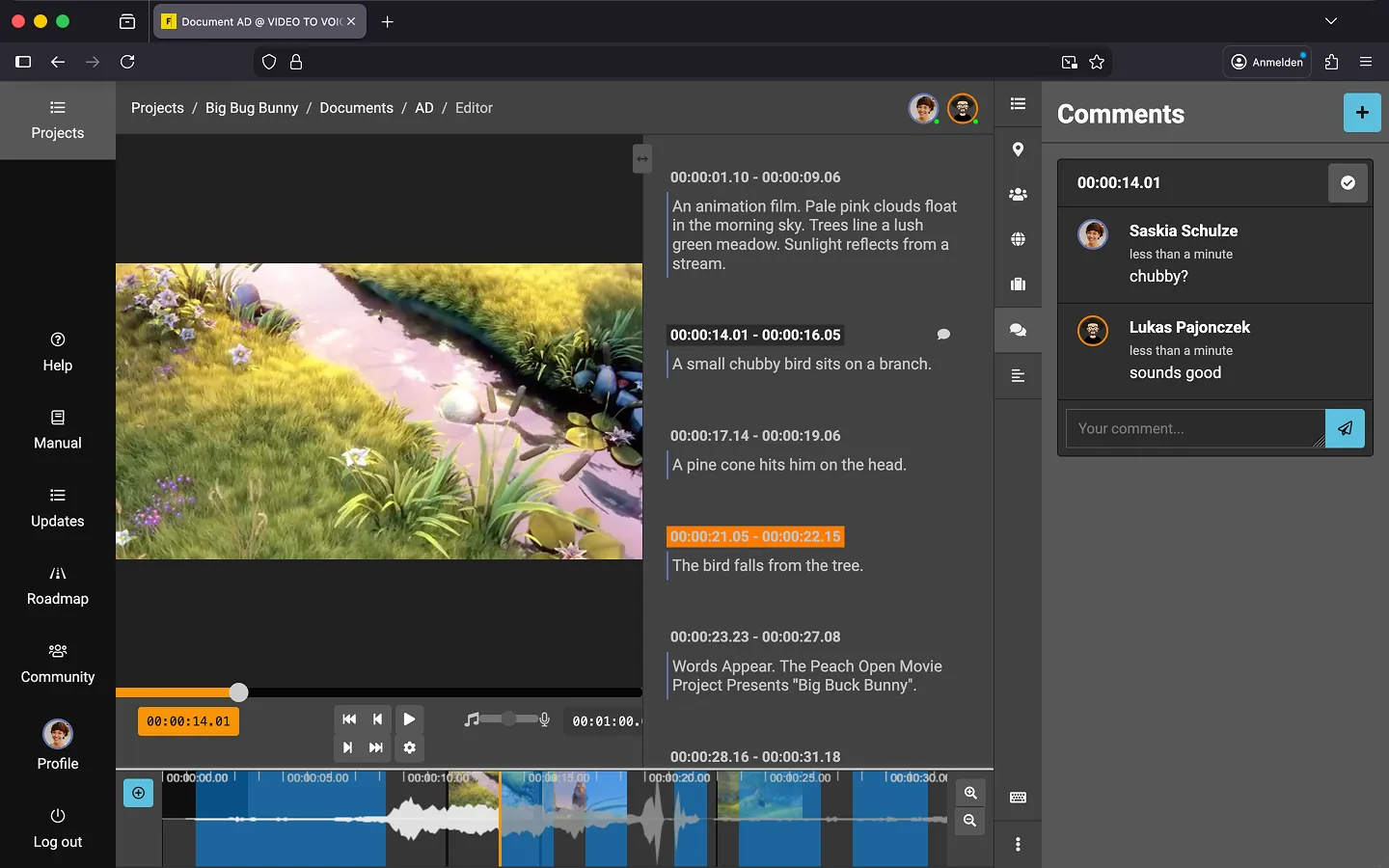
How to Create a Comment
You can leave a comment anywhere in the video. There are three ways to do this:
- Click the “Chat” icon in the toolbar, then click on the “+” button at the top right.
- On the timeline, use the keyboard shortcut “Alt” + “Shift” + “C”.
- Open a text block, then click the “Chat” icon on the right above the text field.
An input field will now open. Enter your comment and press “Submit”.
Tip: If you create comments at the beginning of a text block, they will be attached to that block. If you move the block, the timecode of the comments is automatically adjusted, and the comments will move with it.
Reply to a Comment
A separate discussion thread is created for each timecode, and all associated comments are summarized in it. Click on the timecode or an existing comment to reply.
Delete Comments
Hover your mouse over a comment. If you are an admin on the project or have created the comment, the “Delete” button (trash can icon) will appear. Click on it and confirm the deletion.
Close Discussions
Instead of deleting old comments, you can close a discussion. To do this, click the checkmark to the right of the timecode and confirm. The checkmark will turn green, and the comments will disappear.
Tip: You can show comments again at any time by clicking on the green checkmark (“Show/hide old comments” button). You can also reply again and reopen the discussion.
Export comments
You can export all comments as a Word document.
- Open the context menu (three dots) at the bottom right of the editor.
- Click on “Export Comments…”
- Your browser will download all discussions as a .DOCX file.
Keyboard controls
- Open the comments section from the timeline using the Shift + C keyboard shortcut.
- Use “Alt” + “Shift” + “C” to open the input field for a new comment.
- Use the “Tab” key to switch between all buttons in the comments section. Discussion threads will automatically be focused, and delete or reply buttons will be automatically shown or hidden.
- Press “Enter” to activate a button.
- If you want to cancel your entry, press “Esc” once to close the input field.
- Press “Esc” again to jump back to the timeline.
Last Update: 2026/01/23