
Transfer a Project
You can transfer the entire project to another Frazier account. You just need to make sure that the person is listed in your contact list. The new owner must agree to the transfer. Therefore, the transfer process takes place in multiple steps.
Requirements
You can only transfer a project if no pay-per-use services (e.g., text-to-speech output or automated mixing) have been used in the current project. You can find details on registering new contacts in the Manage Contacts chapter.
Start Transfer
The new owner must agree to the transfer, so the process takes place in several steps. Here’s how to start the transfer:
- Open the project.
- Select “Transfer” from the context menu.
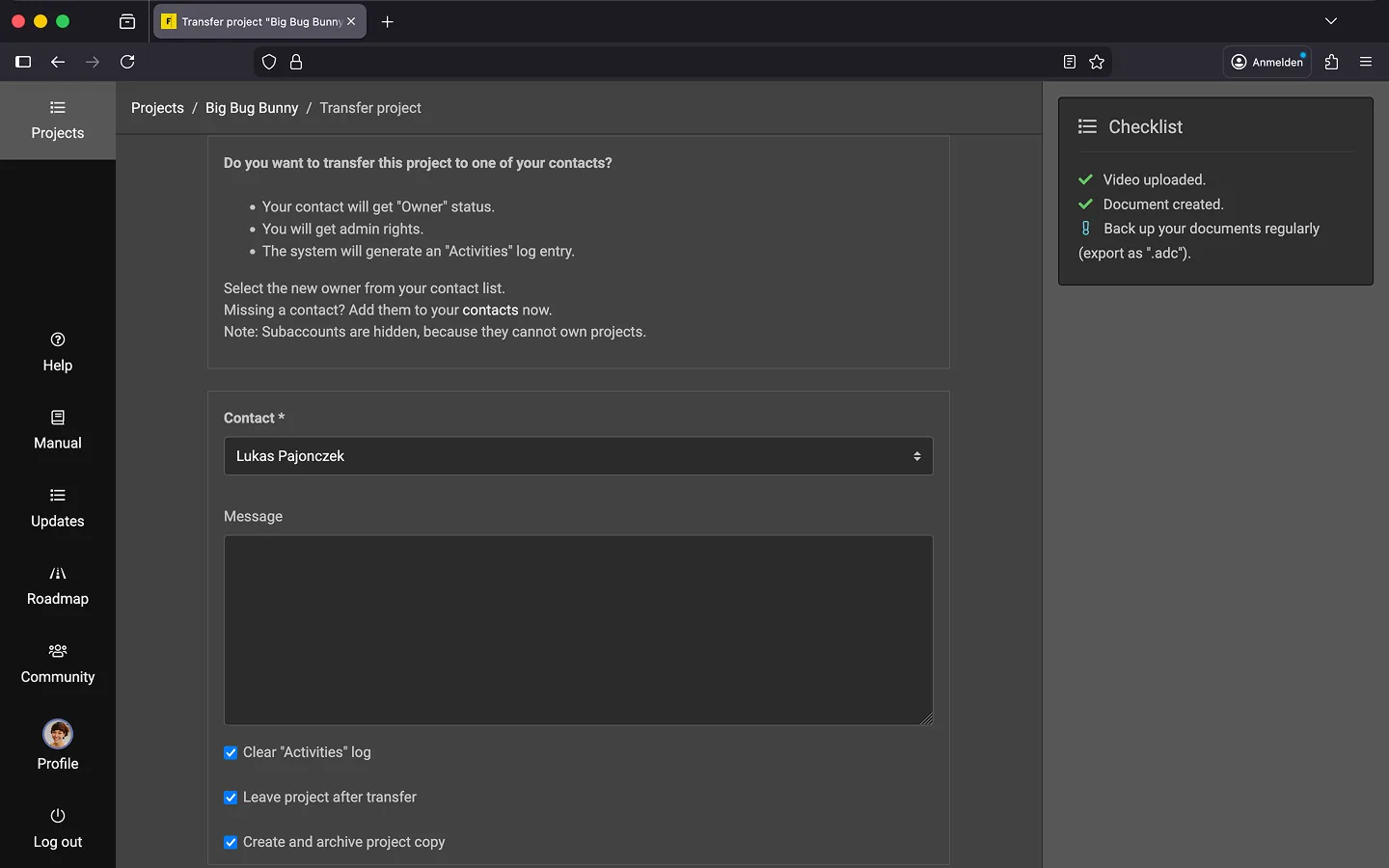
- In the dialog that appears, select who should receive the project.
- Optional: Write a short message. This will be displayed to the recipient of the project in the email and in the project overview.
- Optional: Activate the “Leave the project after transfer” option. This is useful if you are certain that you will never need to access the project again after transferring it.
- Optional: Enable the “Delete activity log” option. This ensures that the new owner will not see what you have done with the project or how long you worked on it.
- Click “Transfer project.”
If the new owner has notifications enabled, the system will send them an email with the information about the transfer, including your optional message.
Note: Since not all users have notifications enabled, it’s a good idea to contact the new owner separately.
Accept Transfer
Once the transfer has been started, a new “Transfers” tab will appear in the sidebar on the left, listing the transfer request.
The new owner can now accept the transfer:
- Open “Transfers” list.
- Select the “Accept” option from the context menu.
The transfer is now complete. If you have notifications enabled, you will receive a confirmation email.
Reject Transfer
The new owner can also reject a transfer. This may happen if they don’t have any free slots available or if it was simply the wrong project.
- Open “Transfers” list.
- In the context menu, select the “Reject” option.
The transfer is now canceled, and the request is closed. If you have notifications enabled, you will receive a confirmation email.
Cancel Transfer
If you wish to cancel a transfer, you can do so as long as the new owner has not yet accepted it.
- Open the “Transfers” list.
- Select the “Cancel” option from the context menu.
The transfer is now canceled, and the request is closed. If the new owner has notifications enabled, the system will send an email informing them of the cancellation.
Clean Up
The “Transfers” tab will remain visible as long as there are any pending transfer requests. By default, completed, rejected, or canceled transfers remain visible for 7 days, so you can see what has happened in the past.
You can manually delete requests by selecting “Delete” from the context menu. Once there are no more requests, the “Transfers” tab will disappear.
Last Update: 2026/01/23