
Create a Project
You must create a separate project for each video you want to describe.
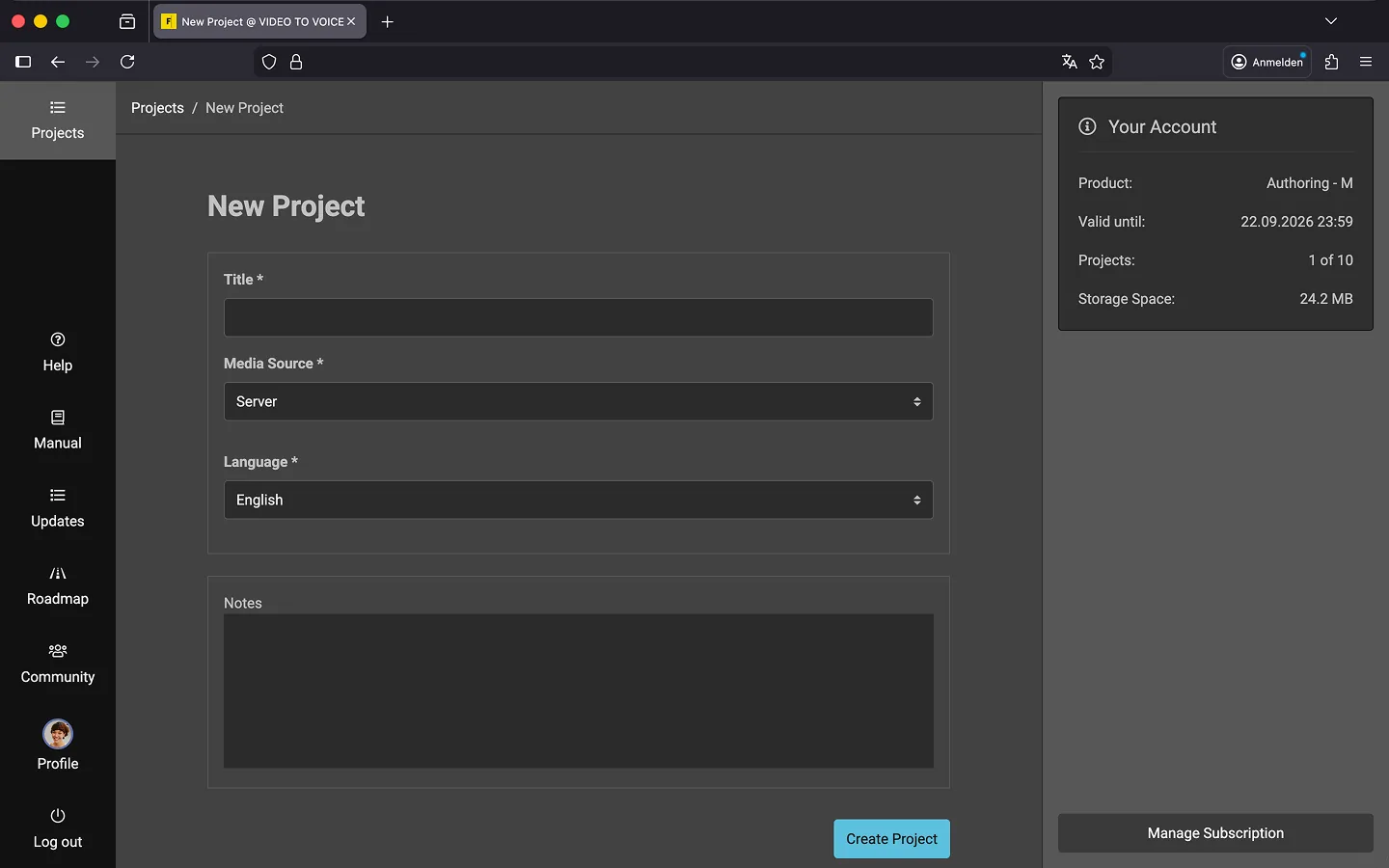
How to Create a Project
First, log in. You will then be automatically redirected to the project list.
- Click “New Project”.
- Enter a “Title” for your project.
- Choose the Media Source. If you select the “Server” option, you’ll upload a video. With the “Local Storage” setting, the video remains on your computer. For more details, refer to the “Local Mode” chapter.
- Set the Language for the project. This should typically be the language spoken most in the video. This setting helps Frazier select an appropriate standard voice later on.
- Add additional ‘Notes’ for yourself and your team. Notes are displayed on the right side of the project overview and within the editor. This allows you to, for example, include links to external documents for quick access at any time.
- Click “Create Project.”
You will now be directed to the project overview. In the upper-right corner, you’ll see a checklist that guides you through the project and shows you the next steps to take.
Languages
You can write an audio description in various languages. The following languages are available in Frazier. If a language is missing, please send an email to support.
- Arabic
- Catalan
- Chinese, Mandarin
- Czech
- Danish
- Dutch
- English
- Estonian
- Finnish
- French
- German
- Greek
- Hungarian
- Icelandic
- Italian
- Korean
- Latvian
- Lithuanian
- Norwegian
- Polish
- Portuguese
- Russian
- Spanish
- Swedish
- Turkish
- Ukrainian
Last Update: 2026/01/23