
Extended Audio Description
Videos that do not contain natural pauses can be difficult to describe. In these cases, extended audio description can be helpful.
How to Activate the Plugin
IMPORTANT: Please contact us so we can activate the plugin for you. Once it’s activated, the feature will be available in all your projects. When you create a new document, you can easily turn on Advanced Audio Description.
How it works
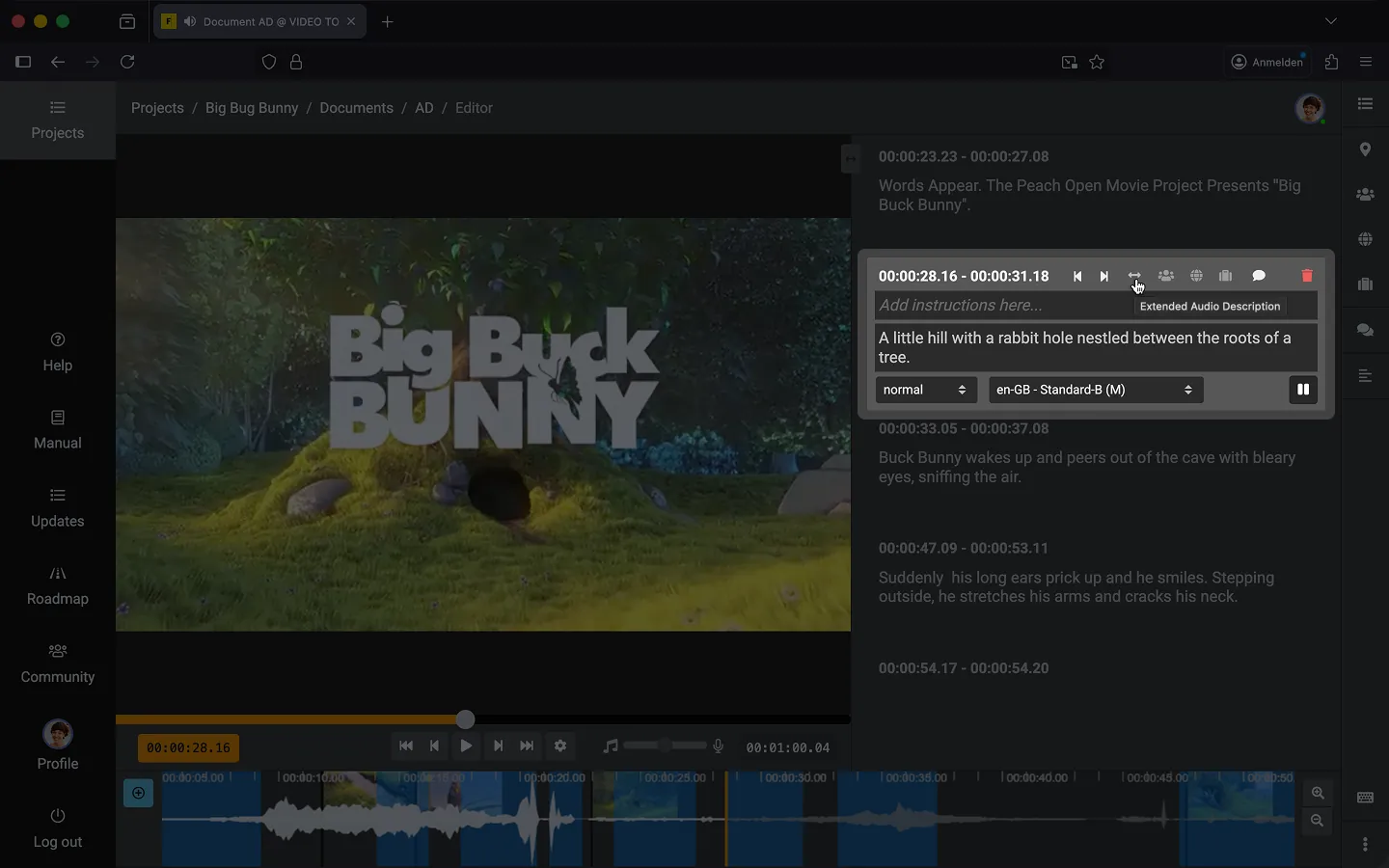
For each individual text block within a document, you can choose whether you want a standard description or an extended description.
- Open a text block in the editor.
- Click the “⟷” icon to toggle extended audio description on or off.
- Alternatively: Use the keyboard shortcut Shift + Alt + X to toggle it on or off.
If extended audio description has been enabled for a text block, the video pauses as soon as the video player reaches the starting position. The description is then read aloud. Once the description is complete, the video resumes playback.
Note: The “⟷” icon turns white when extended audio description is enabled. The icon remains visible even after you exit the text editor. Additionally, on the timeline, you will see a thin vertical line marking the exact point where the extended audio description begins.
Export Options
Text
Document export functions as usual. Please note that Frazier automatically adjusts the timecodes during export. For example, if you have created an extended audio description that is 10 seconds long, all subsequent timecodes will be shifted forward by 10 seconds.
Audio
Signal Export
You can use the Audio Signal plugin to generate a WAV file containing placeholders for subsequent studio recording. This “Signal WAV” also includes appropriate pauses for extended audio descriptions, as well as the necessary metadata to quickly locate the start points for subsequent descriptions. Some audio tools, such as Reaper, are also capable of generating labels directly from the signal WAV file, thereby automatically creating corresponding jump markers within the software.
Audio Export
If you utilize our Audio Export feature, the necessary pauses between all spoken segments are calculated automatically.
Automated Mix
With the Automated Mix feature, the original audio track is also automatically adjusted prior to mixing. This ensures that appropriate pauses are inserted at the specific points where the extended audio description begins.
Video
New Video
If you use our function to create a new, mixed video, the video is automatically cut at the points where the extended audio description starts. Specifically, the current video frame is held (frozen) until the extended audio description concludes.
Note: Since we typically work with compressed video footage within Frazier, the quality of the newly generated video is not optimal. It can, for instance, be used as a “preview” for your client. However, for the final version, you should re-edit the original video file. The following option can assist you with this process.
Edit Decision List
In the Document Export dialog, you will find an additional option: “Extended Audio Description > Edit Decision List – CMX 3600 (EDL).” Some video editing tools - such as AVID - can utilize this file to automatically re-edit the original video file, thereby inserting the necessary gaps for the extended audio description.
Last Update: 2026/10/07