
Resync
It may happen that you receive a script created for a different delivery format, which does not run in sync with the video you currently have. In such cases, you can have Frazier automatically correct the script after importing it.
Scenarios
Re-synchronization may become necessary, for example, if you receive a script for a feature film and your task is to create the the version for television. Due to technical constraints the same film runs approximately 4% slower in cinemas than on television. The imported script will not match the video, and all the timecodes will be “shifted”.
Another possible cause for asynchronous scripts are projects where you have material from the USA to be prepared for European television broadcast. The different delivery formats (NTSC vs. PAL) result in a small time shift (3.6 seconds per hour of the video).
How to Synchronize Your Script with the Video
- Open the document’s context menu.
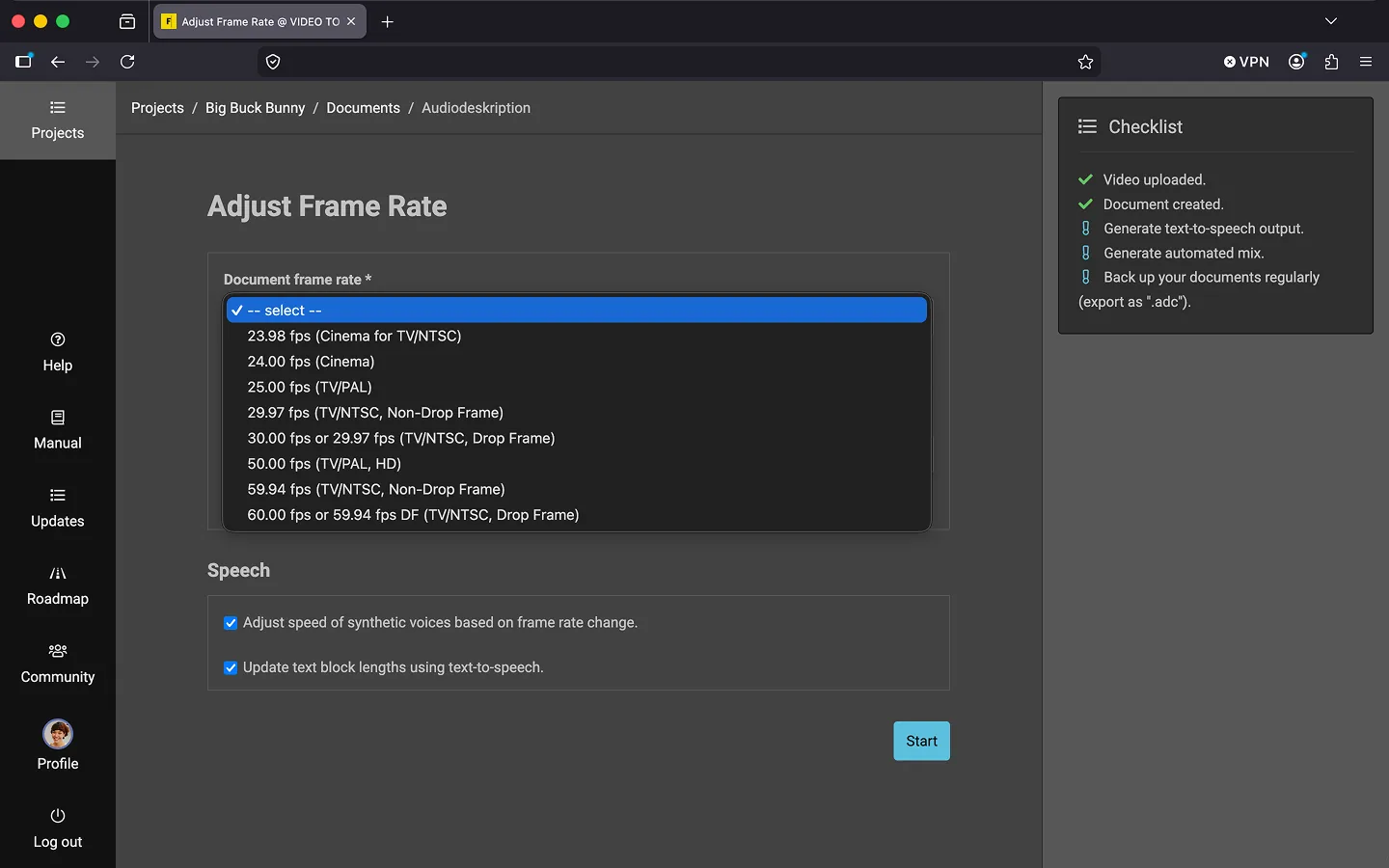
- Select “Adjust Framerate…”
- Choose the video’s framerate. For projects running on the server, Frazier automatically detects the correct framerate. For projects in “Local Mode,” you can view the framerate in VLC, for example.
- Select the video’s framerate. The timecodes in the document will be recalculated according to this framerate, and all texts will be shifted.
- If you also want to adjust the speed of the read-aloud function, keep both checkboxes “Adjust read-aloud speed to new framerate” and “Recalculate text block length using speech output” active.
- Once you are satisfied with your selection, click “Start.”
Note: Ask if you are unsure about the document’s framerate. This cannot be automatically determined for some formats like SRT.
Last Update: 2026/05/18