
Change Plan
Stripe gives you the option to change your current subscription at any time. Stripe automatically processes plan changes and immediately updates your Frazier account.
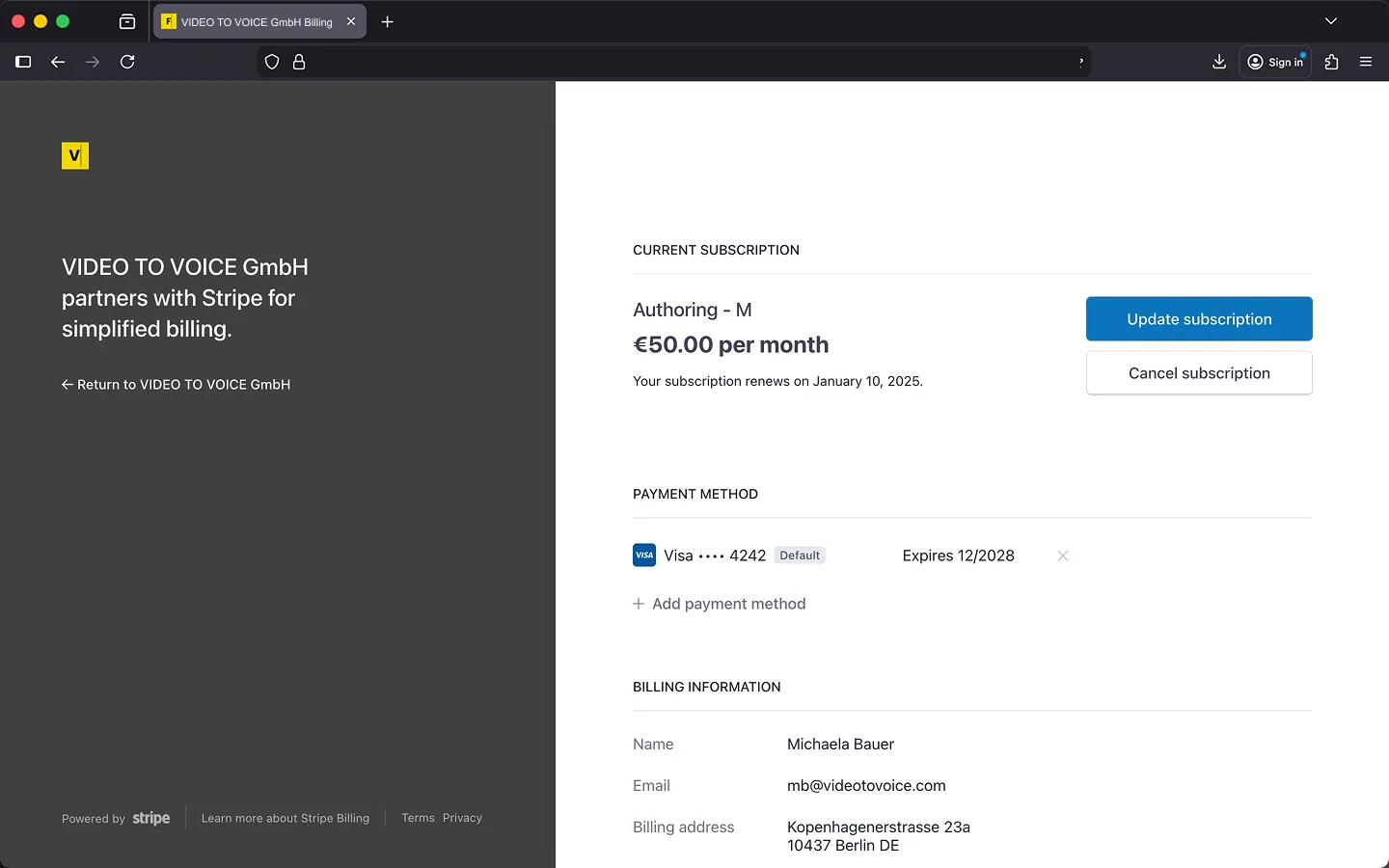
1. Open Customer Portal
First, click “Manage Subscription” in your Frazier profile to open your Stripe customer portal. Then, click on “Update Subscription.”
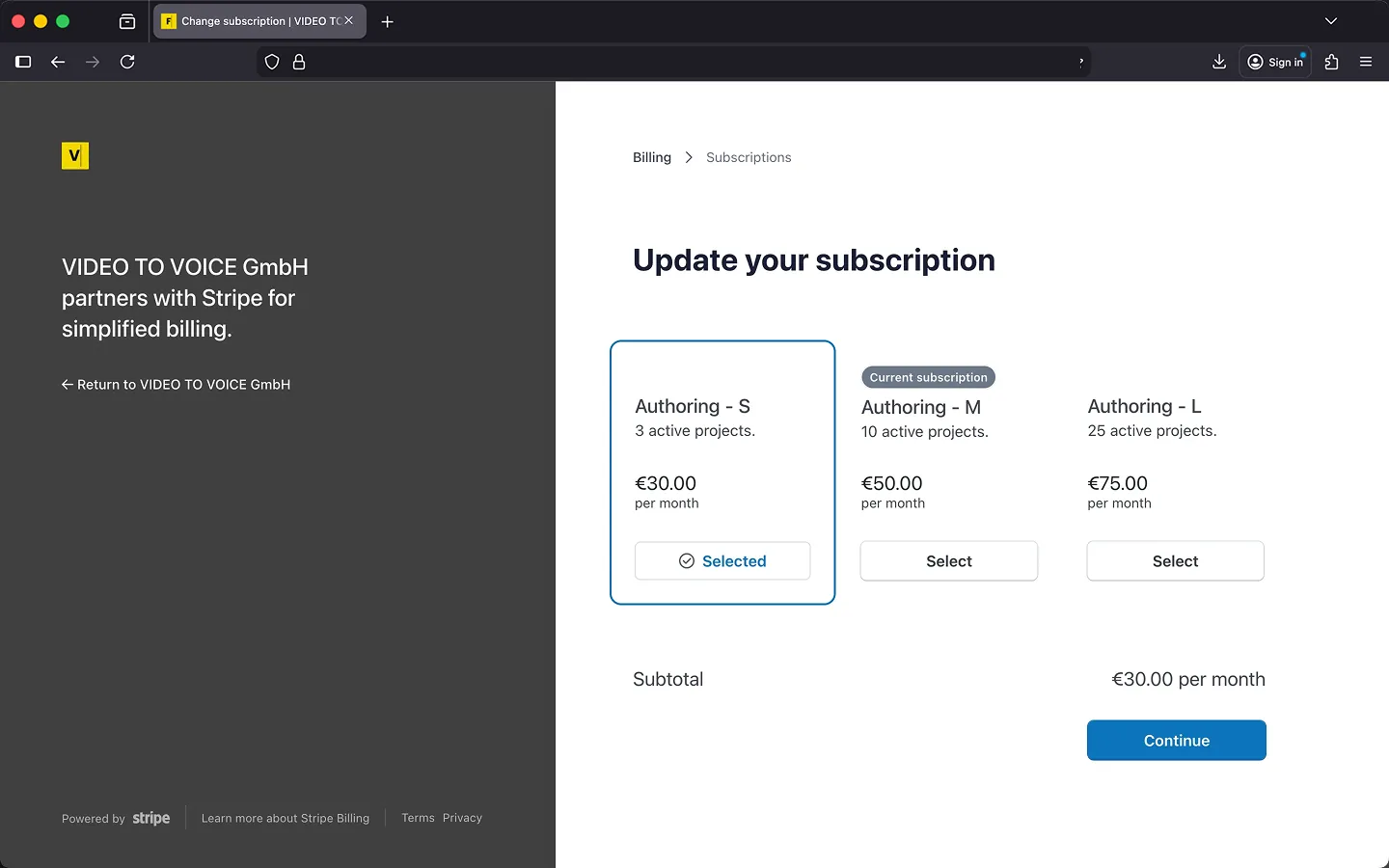
2. Select New Plan
Select the new plan and click “Next.”
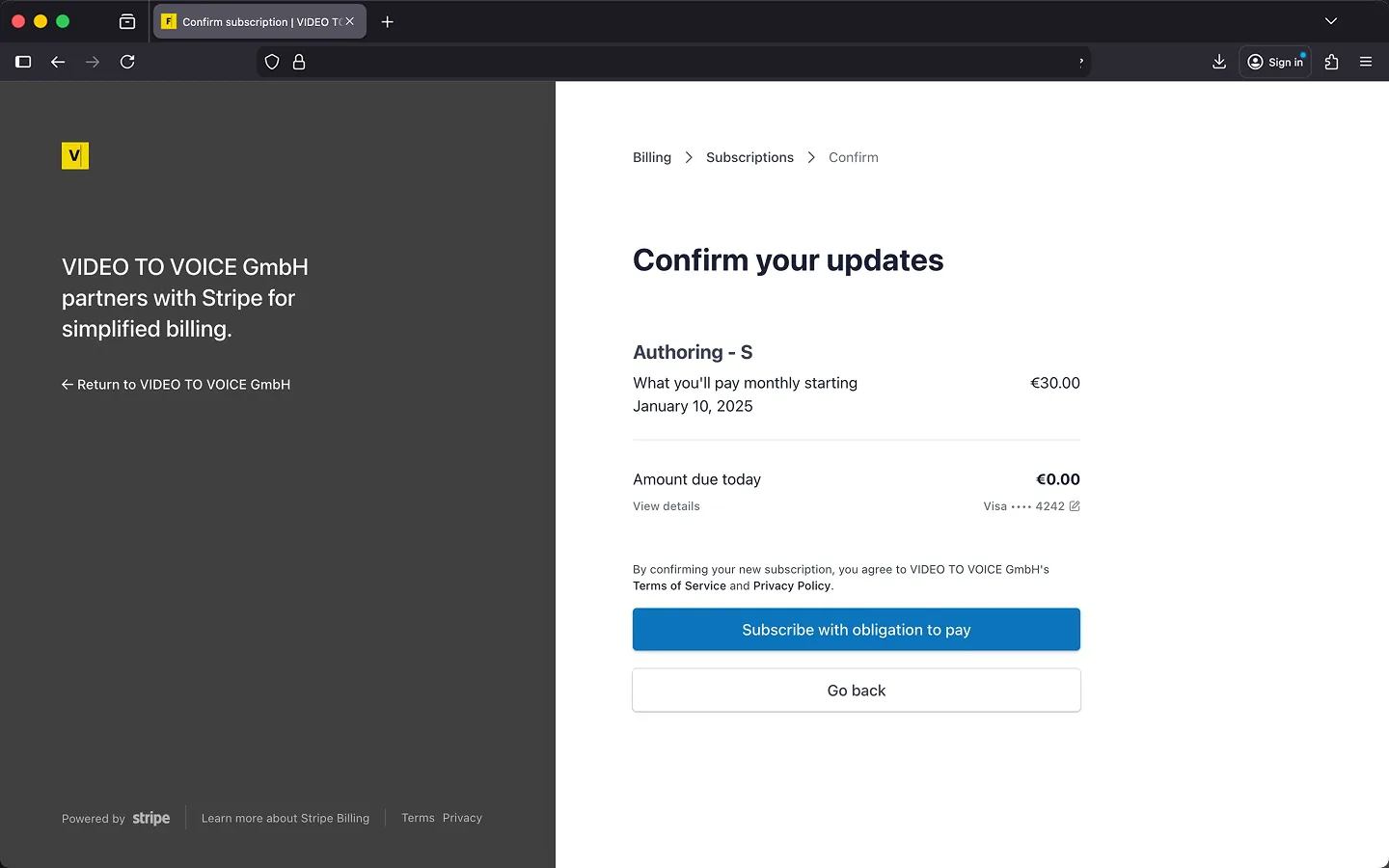
3. Confirm Updates
Click „Subscribe with obligation to pay“, to confirm the update.
Upgrade Plan
Do you need more space for active projects in the short term? Stripe can change your subscription immediately and will only charge you for the difference for the remaining time until the end of the current billing period.
Downgrade Plan
Do you have fewer projects at the moment? You can switch to a smaller plan, which can also be done immediately with Stripe. Choosing a smaller plan will result in a credit, which will be automatically applied to your next invoice.
Attention: Please note that the number of active projects in Frazier will change immediately after the switch. If downgrading to a smaller plan exceeds the maximum number of simultaneous projects, Frazier will notify you. You will then need to archive or delete old projects before you can create new ones.
Handling Credit
In principle, you have the right to request a payout for any balance that accrues as a result of changing your plan. However, Stripe does not process this automatically.
Before you request a payout, please consider whether you still plan to use Frazier next month. Stripe will automatically apply your credit to the next bill, reducing the subscription price for the following month accordingly. This means the credit will be used up by the following month at the latest.
If you no longer want to use Frazier and decide to delete your user account, your credit will be paid out immediately. If you have any questions, please contact support.
Last Update: 2026/01/23