
Multi-Factor Authentication (MFA)
Frazier supports Two-Factor Authentication, which helps to prevent others from accessing your accounts, even if they know your password.
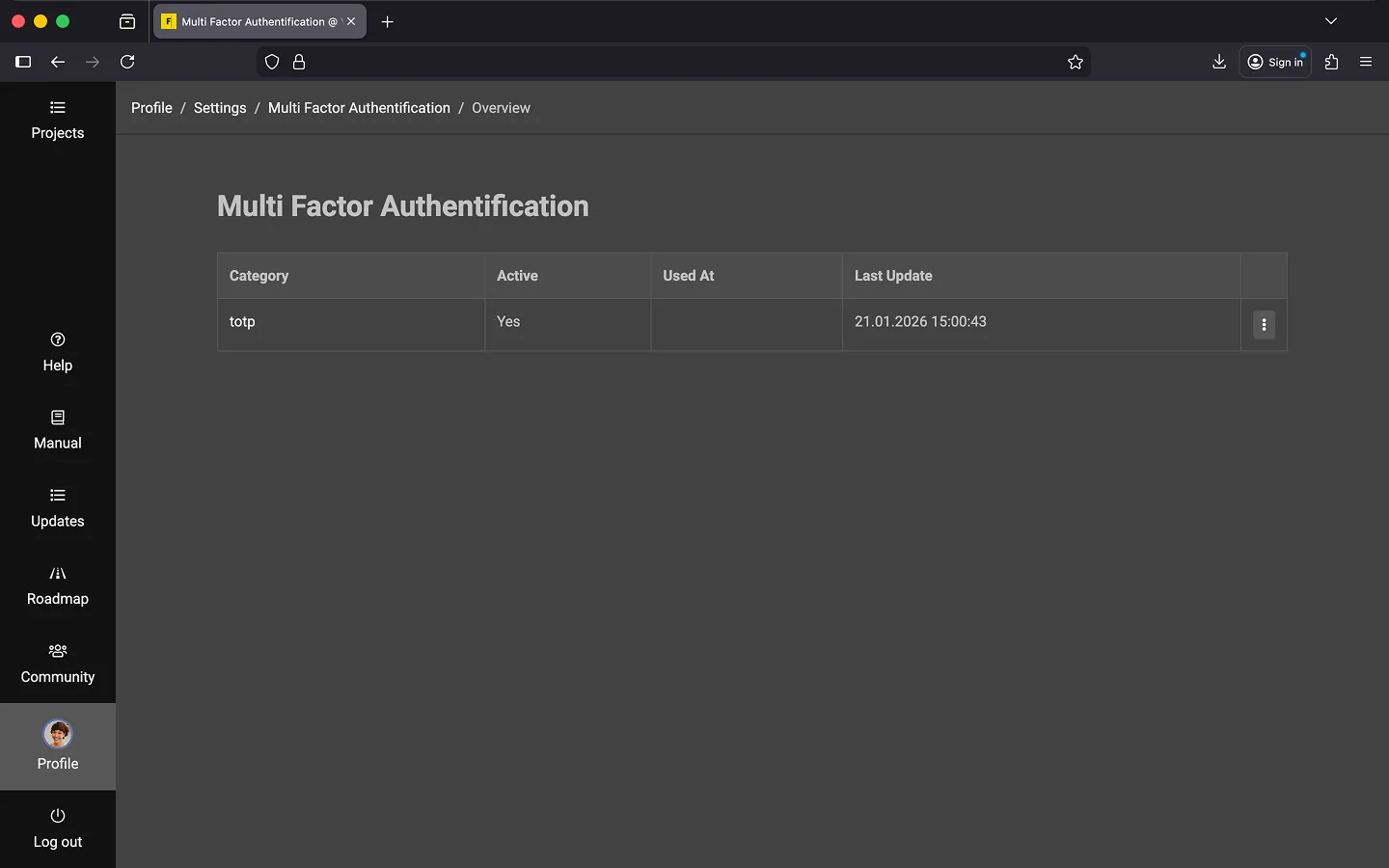
Enable Multi-Factor Authentication (MFA)
- Open your “Profile” and scroll to the “Account” section.
- Click on “Manage MFA”.
- Click the “New MFA” button.
- Click “Create”.
- A QR code will be displayed.
- Scan this code with your authenticator app.
- Save the entry in your authenticator app.
- Enter the code generated by the authenticator app into Frazier to complete the activation.
Disable Multi-Factor Authentication (MFA)
You can disable this protection at any time and re-enable it if needed.
- Open your “Profile” and scroll to the “Account Management” section.
- Click on “Manage MFA”.
- Open the context menu for the entry.
- Click “Disable”.
Delete Multi-Factor Authentication (MFA)
- Open your “Profile” and scroll to the “Account Management” section.
- Click on “Manage MFA”.
- Open the context menu for the entry.
- Click “Delete”.
Authenticator Apps
Here are the most common authenticator apps.
Last Update: 2026/01/23