
Pauses
You can insert a pause directly within the text. This can be useful, for example, to include a dialog cue in the description text and define a pause matching the dialog’s length in the film.
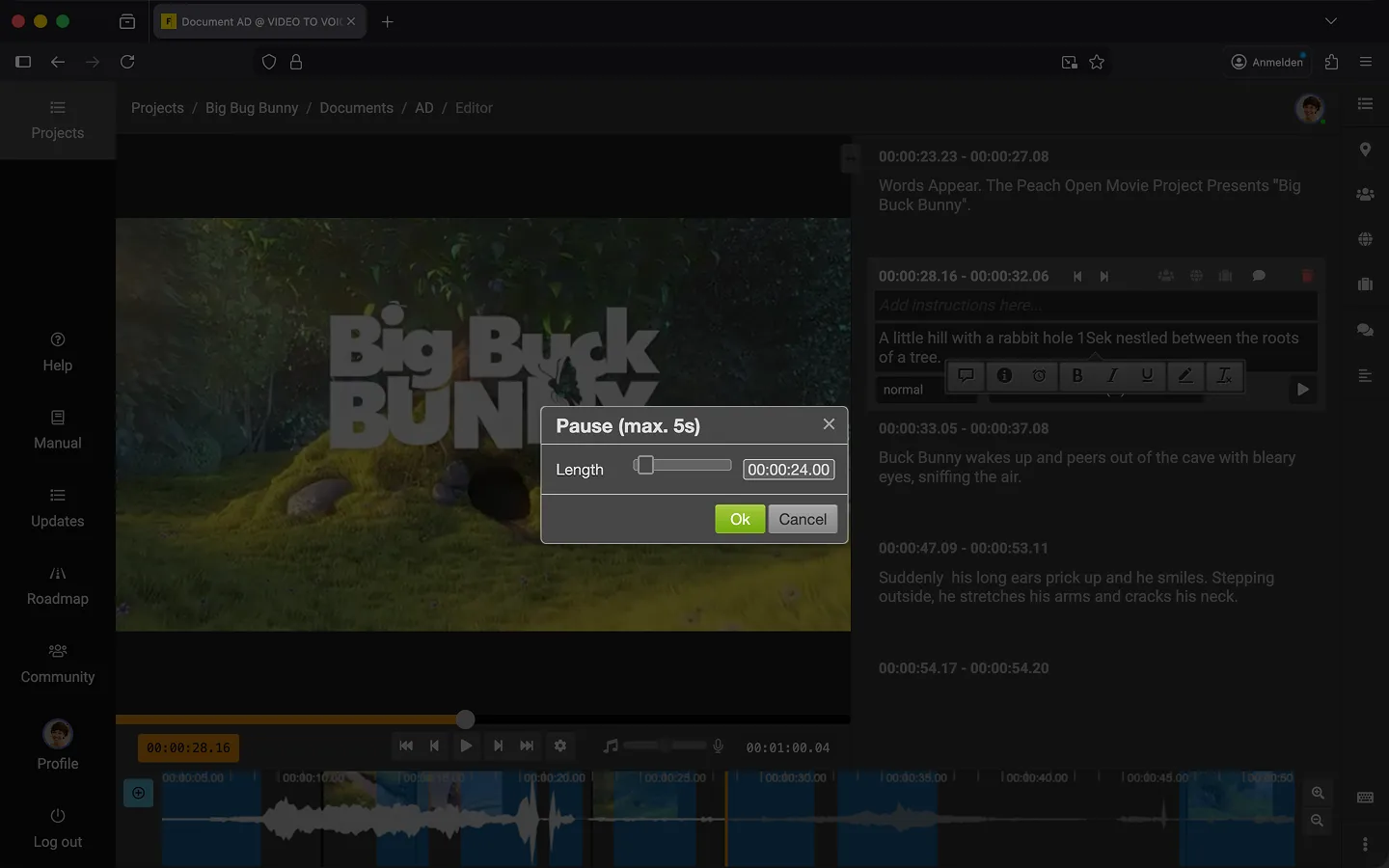
How to Insert a Pause in the Text
- Write something like “1 second.”
- Highlight “1 second.”
- A small menu will appear above the highlighted text.
- Click the “clock” icon to select the “Pause” option.
- A popup will appear where you can set the length of the pause.
- Confirm with “OK.” The pause will now be displayed in italics, with a small clock icon preceding it.
You can modify a pause later by highlighting the text again and clicking the clock icon in the menu.
Once your changes are saved, the timeline will also reflect the pause. When the document is exported, the clock icon will be removed.
Tip: To delete a pause, highlight the italicized text and click the clock icon in the menu again. In the dialog, click the red “Delete” button. The pause will be removed, and the text will return to normal display and playback.
Pause as a Text Snippet
Do you frequently use pauses of a specific length? Use a text snippet to generate a placeholder.
- Open the “Text Snippets” tab above the toolbar.
- Create a new snippet and use
(1s)as the abbreviation. - Enter the following as the content:
*... (1 Sek) ...|1000* - Click “Save.”
- Open a text block and type
(1s)into the text field. Then press “Alt” + “Shift” + “Enter.” - Frazier will now insert a one-second pause.
Last Update: 2026/01/23