
Snippets
Do you often find yourself repeatedly typing long or complex words and names? With Snippets, you can quickly replace abbreviations like “FYI” with “For your information” using a simple keyboard shortcut.
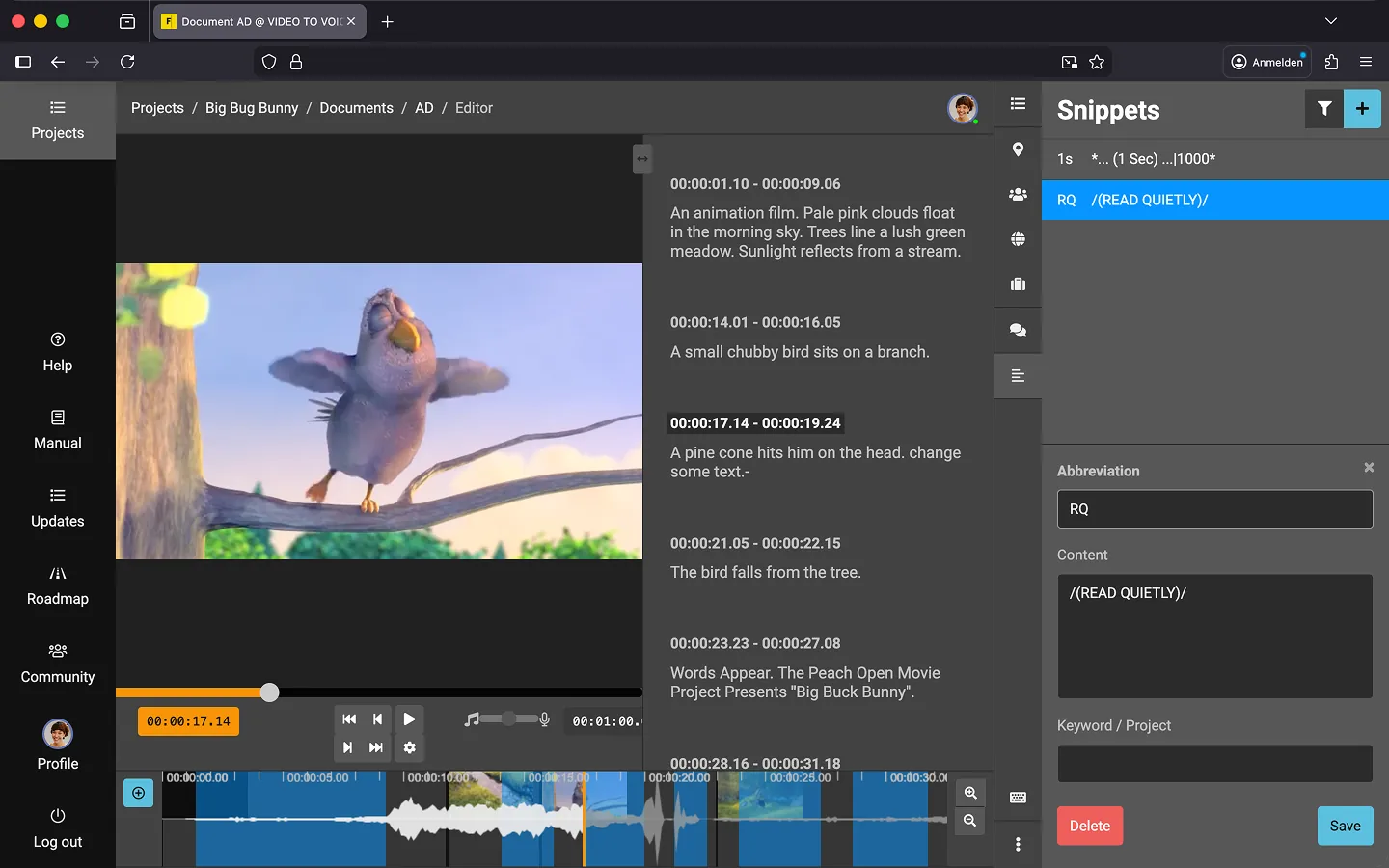
How to Create a Snippet
The easiest way to manage snippets is directly in the editor.
- Open a document.
- Click the “Snippets”” icon on the toolbar.
- Click the “+” icon at the top right of the “Snippets” section.
- Enter the abbreviation to be replaced later (e.g., “FYI”).
- Enter the replacement text (e.g., “For your information”).
- (Optional) Add a tag to group snippets, allowing you to filter them later.
How to Insert Snippets
- Open a text block in the document.
- Write the abbreviation in the text.
- Press “Alt” + “Shift” + “Enter”.
The abbreviation will now be replaced with the full text. This also works in the “Instructions” field!
Grouping Snippets
You can group snippets by assigning tags. For example, if you’re working on a series, you can create tags specific to that series and use snippets relevant to it across multiple projects or episodes.
Filtering Snippets
If you’ve assigned tags to your snippets, you can filter them for easier access:
- Open the filter dropdown at the top right of the snippets list.
- Select the desired tag to display only the relevant snippets.
Note: Only the visible snippets in the list will be active. If a snippet doesn’t work, ensure no filter is hiding it.
Tip: Using tags and filters lets you reuse the same abbreviation for different purposes across projects. For instance, “CR” could hold pre-written credits that vary depending on the series.
Using Snippets for Comments
You can use snippets to add comments or instructions that are not read aloud. Here’s a trick: enclose your comment text with //, and Frazier will automatically format it as a comment.
Example: Subtitles
To label a text block as a subtitle, create a snippet like this:
- Abbreviation:
UT - Text:
/Subtitle:/
When you press Alt + Shift + Enter, Frazier will insert this as a comment.
Example: Placeholders
For comments in the middle of text (e.g., within brackets) that shouldn’t be read aloud, create a placeholder snippet:
- Abbreviation:
() - Text:
/()/
When inserted, Frazier will add the brackets and mark the area as a comment. Place the cursor between the brackets (e.g., using the left arrow key) and type your comment. The formatting will adjust automatically.
Using Snippets for Pauses
You can also create fixed pauses as snippets.
- Abbreviation:
(1s) - Text:
*... (1 Sek) ...|1000*
The 1000 represents 1 second. For 2 seconds, use 2000, and so on.
Hier ist die Übersetzung im Markdown-Format:
Text Snippets for Pronunciation Corrections
You can also create a pronunciation correction as a text snippet.
- Abbreviation:
Yascha - Content:
|Yasha|Jasha|
First comes the word that should be inserted (Yasha). Then comes the word as it should be pronounced (Jasha).
Last Update: 2026/01/23