
Lock a Document
Sometimes, you need to focus in order to write a good manuscript. Lock your document exclusively, and other team members will not be able to open it.
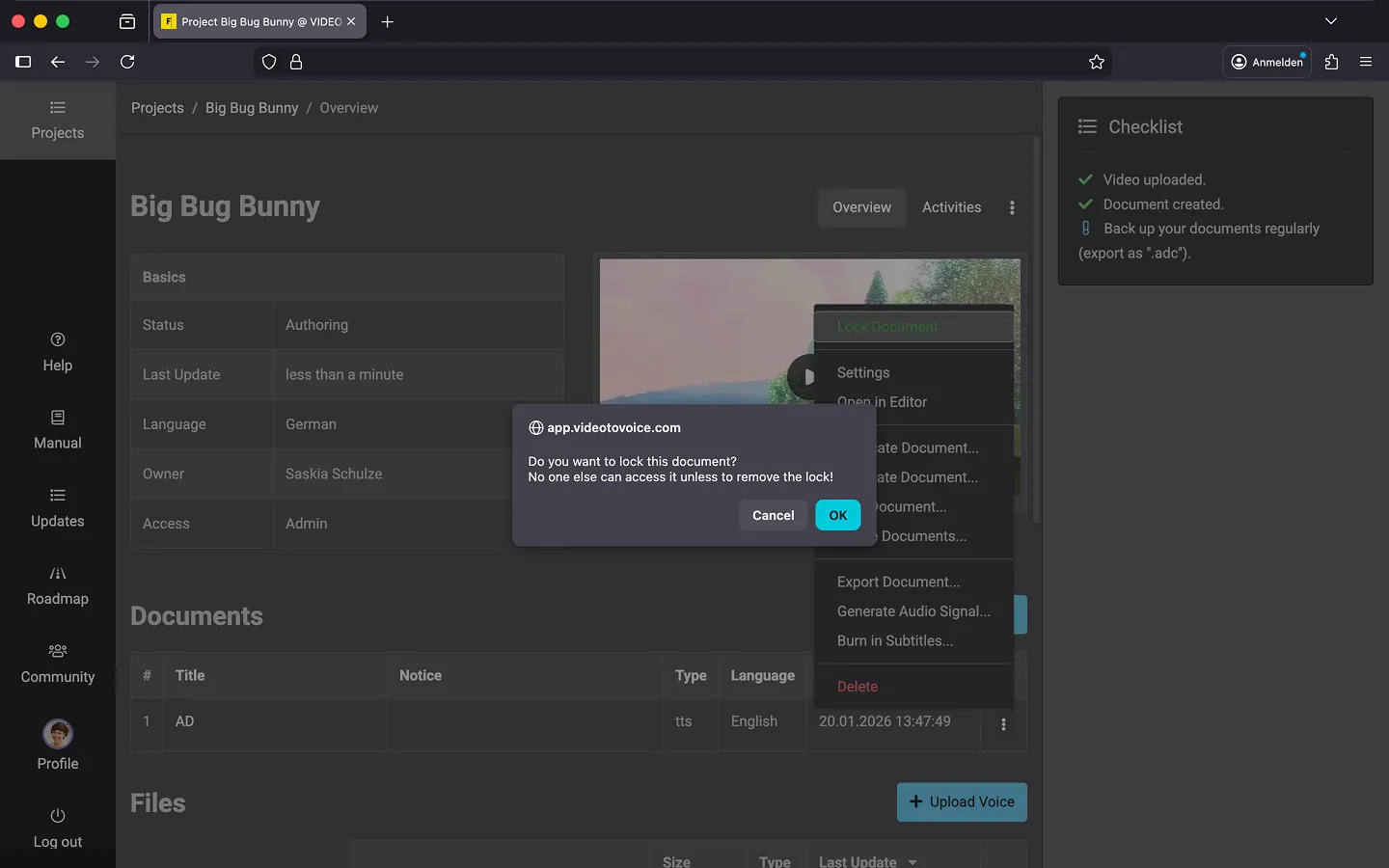
How to Lock a Document
To lock a document, you need “Read/Write” or “Admin” rights.
- Open the document’s context menu.
- Select the “Lock Document” option.
- Confirm lock by clicking “Ok”.
Once the document is locked, a small green “lock” icon will appear to the left of the document title in the project overview. For other team members, an orange icon will appear instead. Additionally, information such as “Last Update” will be hidden.
Attention! Once the document is locked, no one can access it except you — not even the owner of the project. So, don’t forget to unlock the document when you’re done!
Unlock Document
Once you have finished your work, you can share the document with everyone again.
- Open the document’s context menu
- Select the “Unlock Document” option.
- Confirm the unlock by clicking “Ok”.
Last Update: 2026/01/23