
Merge a Document
Have you described several chapters of a film separately? Or did you receive subtitles that should be read out along with the audio description? You can merge such documents if necessary.
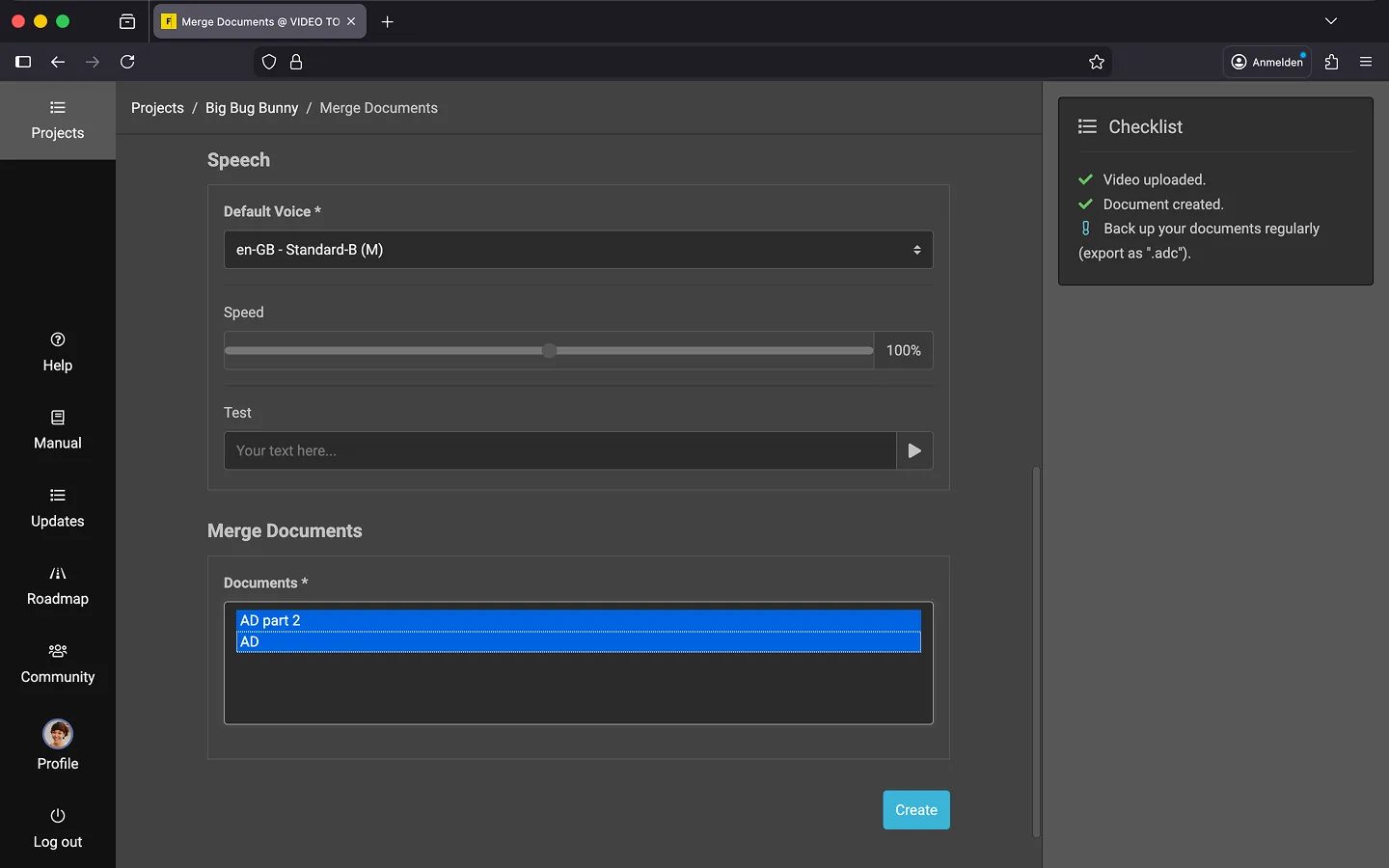
How to Merge Documents
- Open the context menu of the first document.
- Select the “Merge documents…” option.
- Assign a “Title” for the new, assembled document.
- Check the settings for “Default Voice”, “Language”, “Notes”, etc.
- Now select the “Documents” that you want to merge. To select and deselect individual documents, hold down the “Ctrl” key while pressing the left mouse button or the “Space”.
- Click on “Create.”
- A new document will now be created in which all cue points from the selected documents have been merged.
Scenarios
Two short examples where combining documents has proven successful.
1. Combine subtitles and audio description
A common scenario is inserting subtitles into an existing audio description. In many cases, the subtitles should then be read out with one or several other voices.
The following process has proven successful:
- Create a document for the subtitles and import a subtitle file if necessary.
- Edit the subtitles, set the desired voices.
- Merge the existing audio description and the new subtitles into a new document, as described above.
- Use the combined document to check the positioning of the subtitles and audio description, and adjust if necessary.
- Optional: Delete the old documents.
2. Combine Several Episodes of a Series
Sometimes, several episodes of a series are edited into a single film and, if necessary, shortened. To reuse the audio descriptions you have already created, you can do the following:
- Create a new project for the long version.
- Export the manuscript from each episode as an *.adc file.
- Import all episodes into the new project as separate documents.
- Optional: If the individual episodes start with the same timecode, you should move the texts from episode 2 onwards before merging. This will prevent them from overlapping after being combined! For example, if you have 3 episodes of 30 minutes each, episode 1 can remain unchanged. In episode 2, move all texts by 30 minutes, and in episode 3, move them by 60 minutes.
- Now you can combine the documents as described above.
- Optional: Delete the imported episodes. From now on you will work in the merged document.
- Finally, make corrections in the merged document. If the new video has different scene cuts, the texts will most likely no longer fit exactly, and you will need to correct them manually. Use batch processing if you want to move several ue points at the same time.
Last Update: 2026/01/23