
Bulk Edit
The “suitcase” became a “bag”? You have a newly cut version of the film, and now all your descriptions are 10 seconds off? In such cases, the editor’s bulk edit feature comes in handy.
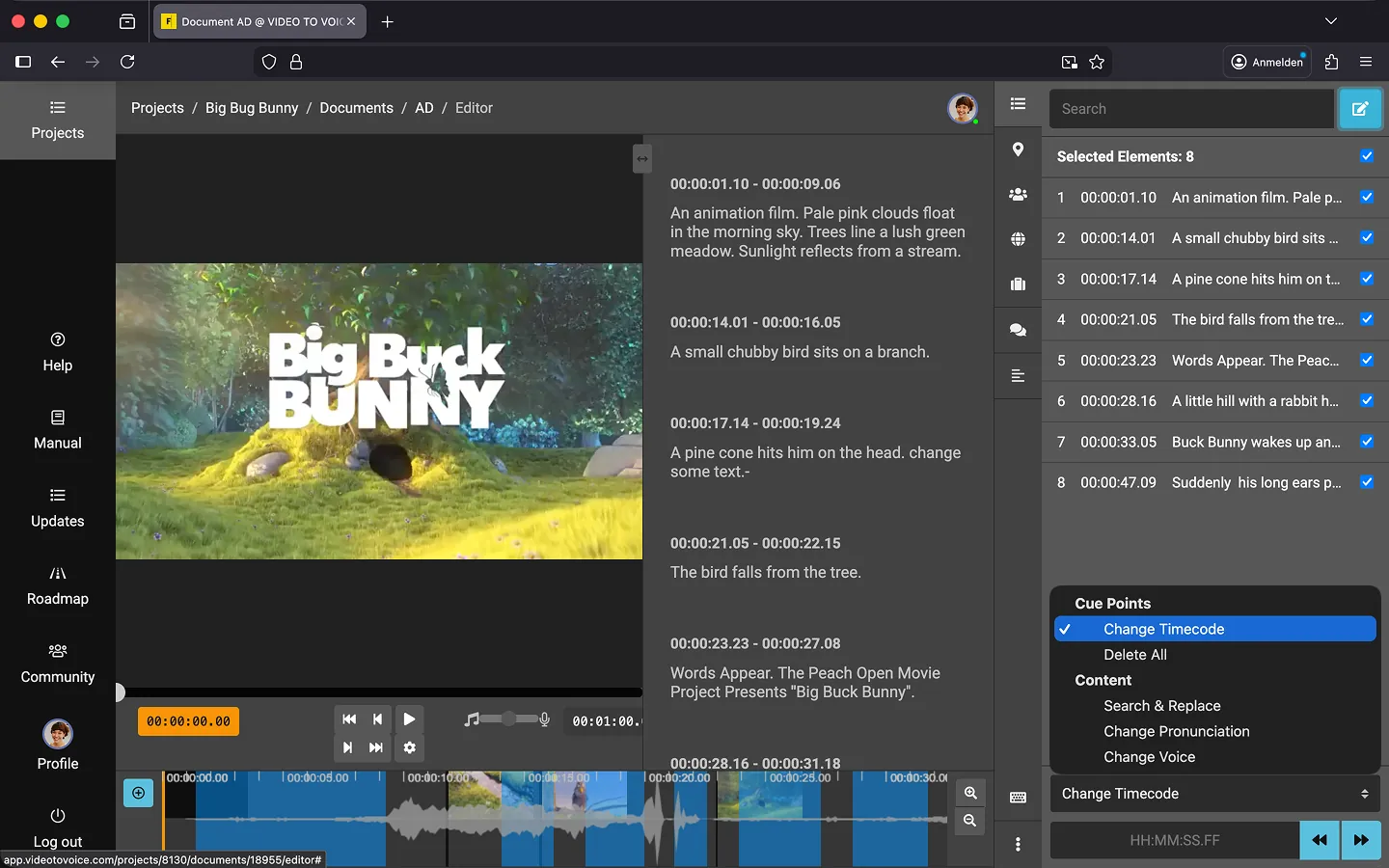
Activate Bulk Edit
You can open batch processing via the quick navigation.
- Click the “List” icon in the toolbar.
- Click the “Pen” icon next to the search field.
- Select an option.
Options
The following options are available to you.
Find & Replace
Use this function to correct several identical words in the manuscript.
- Enter the word you want to replace in the text field.
- Activate “Bulk Edit” (click the “Pen” icon at the top right).
- Ensure that all relevant text blocks are selected.
- Choose the “Find & Replace” option from the dropdown menu.
- EEnter the replacement word.
- Click on the “Document” icon.
The text blocks will now be updated one after the other, and new utterances will be created.
Shift Timecodes
Move multiple text blocks in a single action.
- Ensure that all text blocks are selected (checkboxes checked).
- Select the “Change Timecode” function at the bottom.
- Enter the amount by which you want to shift the text blocks.
- Clicking the “Rewind”icon shifts all blocks backward.
- Clicking the “Fast Forward” icon shifts all blocks forward.
- Example
- Want to shift all text blocks by 30 seconds because a trailer was added at the beginning?
- Enter “00:00:30.00” in the input field.
- Click the “Fast Forward” icon.
- The text blocks will be moved one after the other.
Changing the Voice
If you are working with subtitles that are intended to be read aloud, it is helpful to use two different voices. In this case, you can change the voice for all text blocks with subtitles simultaneously.
- Select all text blocks with subtitles.
- Set the “Change Voice” function at the bottom.
- Choose a new voice.
- Click the “Update” icon.
Adjust Pronunciation
Need to correct the pronunciation of the word “Tschutscha” 10 times? This is the feature you need.
- Enter the word whose pronunciation you want to change in the text field.
- Activate “Bulk Edit”.
- Ensure that all relevant text blocks are selected.
- Choose the “Adjust Pronunciation” option from the dropdown menu.
- Write the word as it should sound. 😉
- Listen to the result by clicking the “Play” icon.
- Click the “Document” icon to apply the changes to all selected text blocks.
Deleting Multiple Blocks
No longer need the last ten text blocks? Here is how you can delete them:
- Select all or individual text blocks.
- Select the “Delete All” function at the bottom.
- Type **“Delete All” to confirm.
- Click the “Trash” icon.
Last Update: 2026/01/23