
Glossary
Do you frequently need an overview of the existing descriptions of a person, place, or object? Use tags to automatically create a glossary.
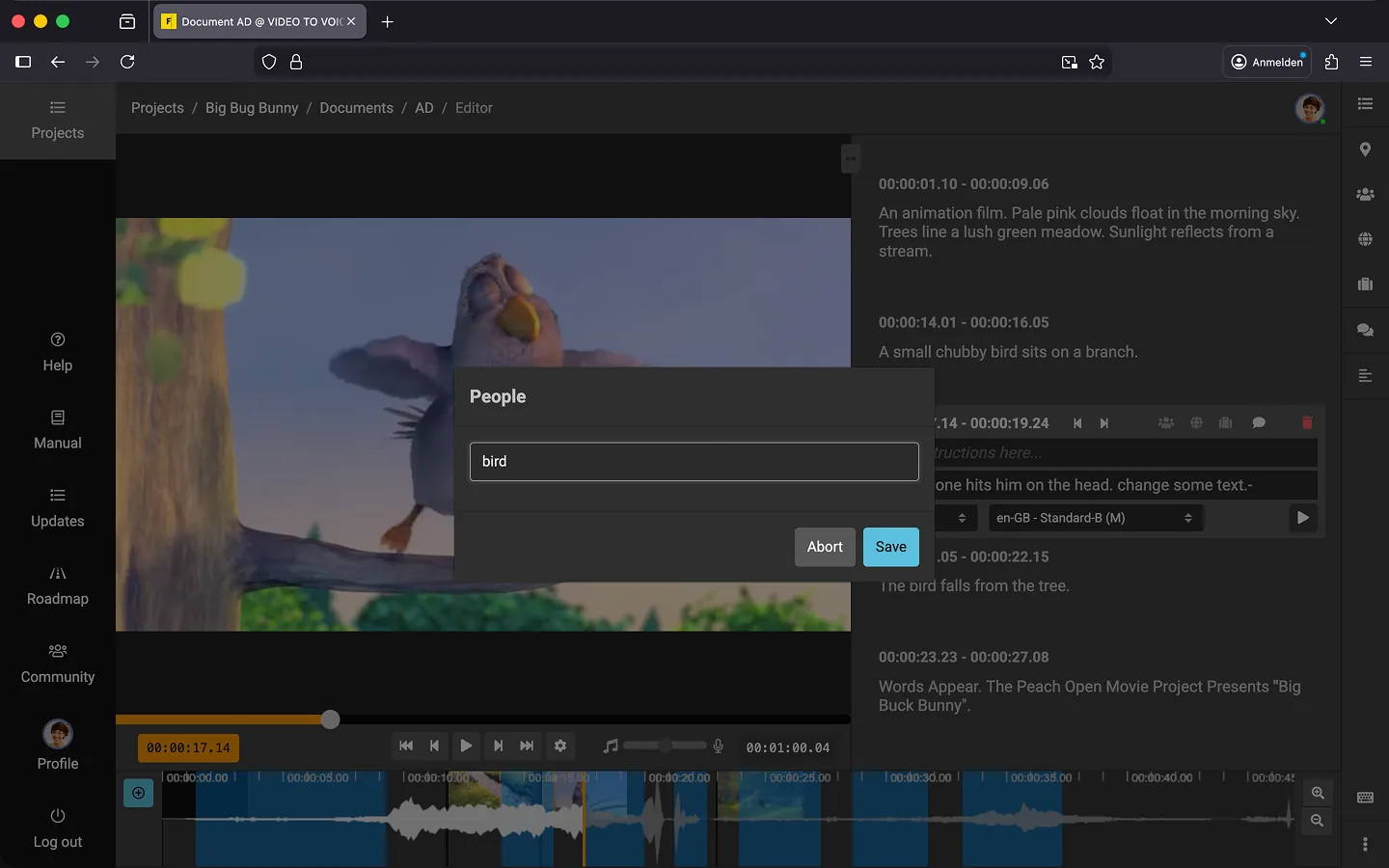
You can assign three types of tags to each text block. The toolbar on the right has three tabs, which open the respective glossary sections:
- People (“Person” icon)
- Places (“Globe” icon)
- Objects (“Suitcase” icon)
Tip: Tags are always linked to a text block in the document. If you need to mark a location without adding a description, consider using Markers as explained in the previous chapter.
How to Add Tags
To tag a person, follow these steps:
- Click on a text block in the document to activate it.
- Click the “People” icon at the top right of the text block. A dialog with an input field will appear.
- Enter the person’s name, e.g., “Lukas”. 😉
- Click “OK”.
To tag places or objects, click on the corresponding icon and repeat the process.
Tip: You can assign multiple tags of the same type to a single text block, such as tagging several people in one description. Separate tags with commas, e.g., “Lukas, Christian.” This will create two separate glossary entries: one for “Lukas” and one for “Christian.”
Viewing All Descriptions
When the glossary is open via the toolbar on the right, it updates automatically. To access it manually:
- Click the “People” icon (or the relevant tag type) on the toolbar.
- A list of all assigned tags appears (e.g., “Lukas”).
- Click a tag to view the associated descriptions, including timecodes.
- Click a description to jump directly to that point in the video.
Deleting Tags
- Activate the relevant text block.
- Click the corresponding tag icon (e.g., “People”) to open the dialog.
- Delete the text in the input field.
- Click “OK”.
The glossary will automatically update, removing the description from the list. If the deleted tag is no longer used anywhere in the document, it will also be removed entirely from the glossary.
Exporting the Glossary
You can export the glossary as a Word document in .docx format.
- Click on the “Download” icon at the top right of the glossary.
- Alternative: Select the “Export Glossary” option in the context menu at the bottom right of the editor.
- The glossary will now be downloaded to your computer.
Last Update: 2026/01/23