
Markers
Do you want to mark a specific position in the video? Whether it’s to tag the first appearance of a person or for later research, Markers allow you to place small bookmarks on the timeline.
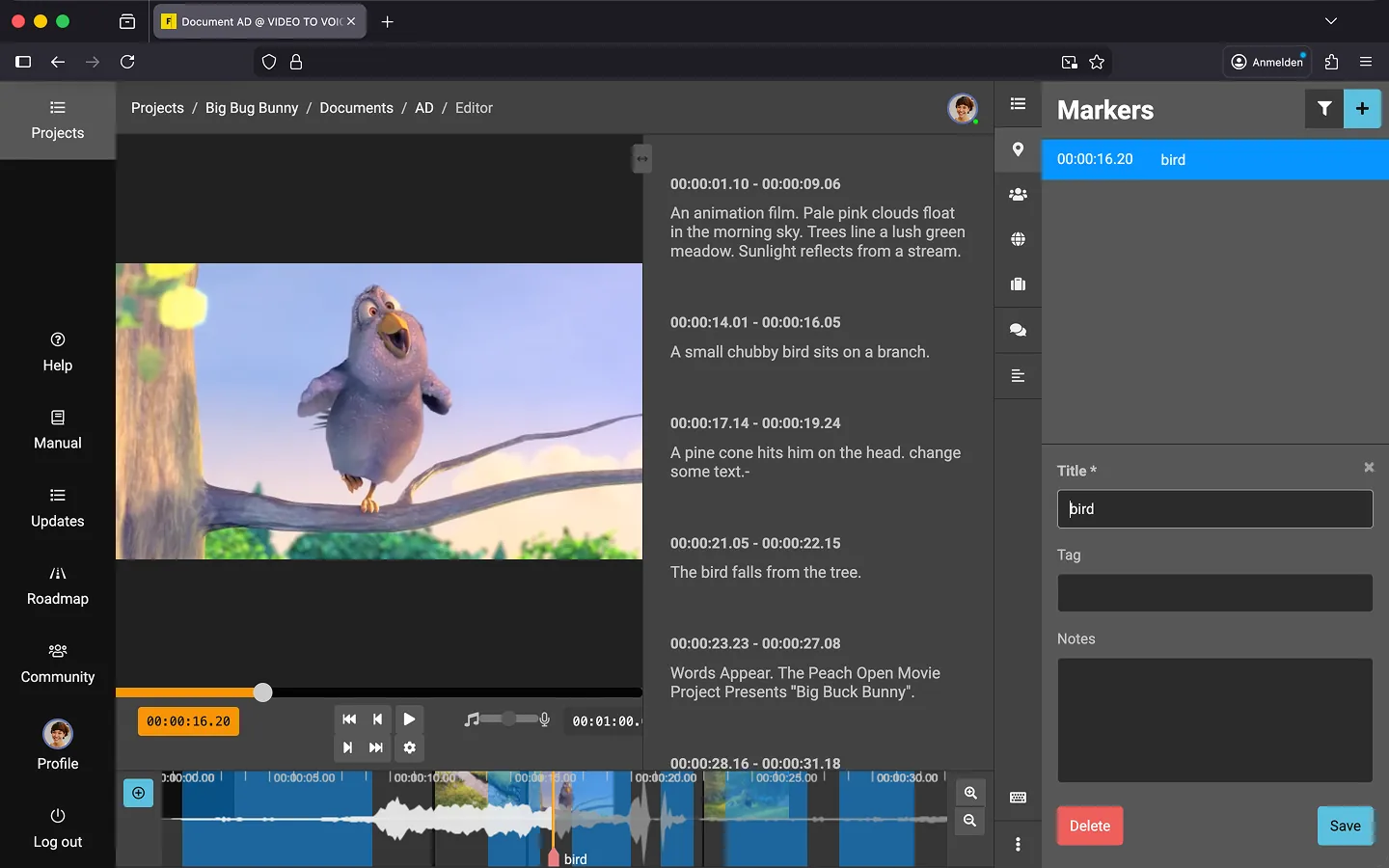
How to Create a Marker
In the toolbar on the right, you will find a small “Pin” icon. Click it to expand the markers section.
- Navigate to the desired position in the video.
- Open the “Markers” section in the toolbar.
- Click the “+” icon or use the keyboard shortcut.
- Add a title.
- Optional: Assign a category to a marker; this allows you to filter the list at the top right of the “Markers” section.
- Add a note.
- Click “Save”.
The new marker will appear in the list on the right and on the timeline below. Click the entry to jump directly to that position in the video.
Moving Markers
You can easily move a marker on the timeline using drag and drop.
Exporting Markers
Export a DOCX file containing all markers and notes by selecting “Export Markers…” from the context menu in the bottom right.
Tip: If you create a category called “First Mentions,” you can easily generate a list of all first mentions in the video, export it, and later paste it into your script.
Last Update: 2026/01/23