Split View
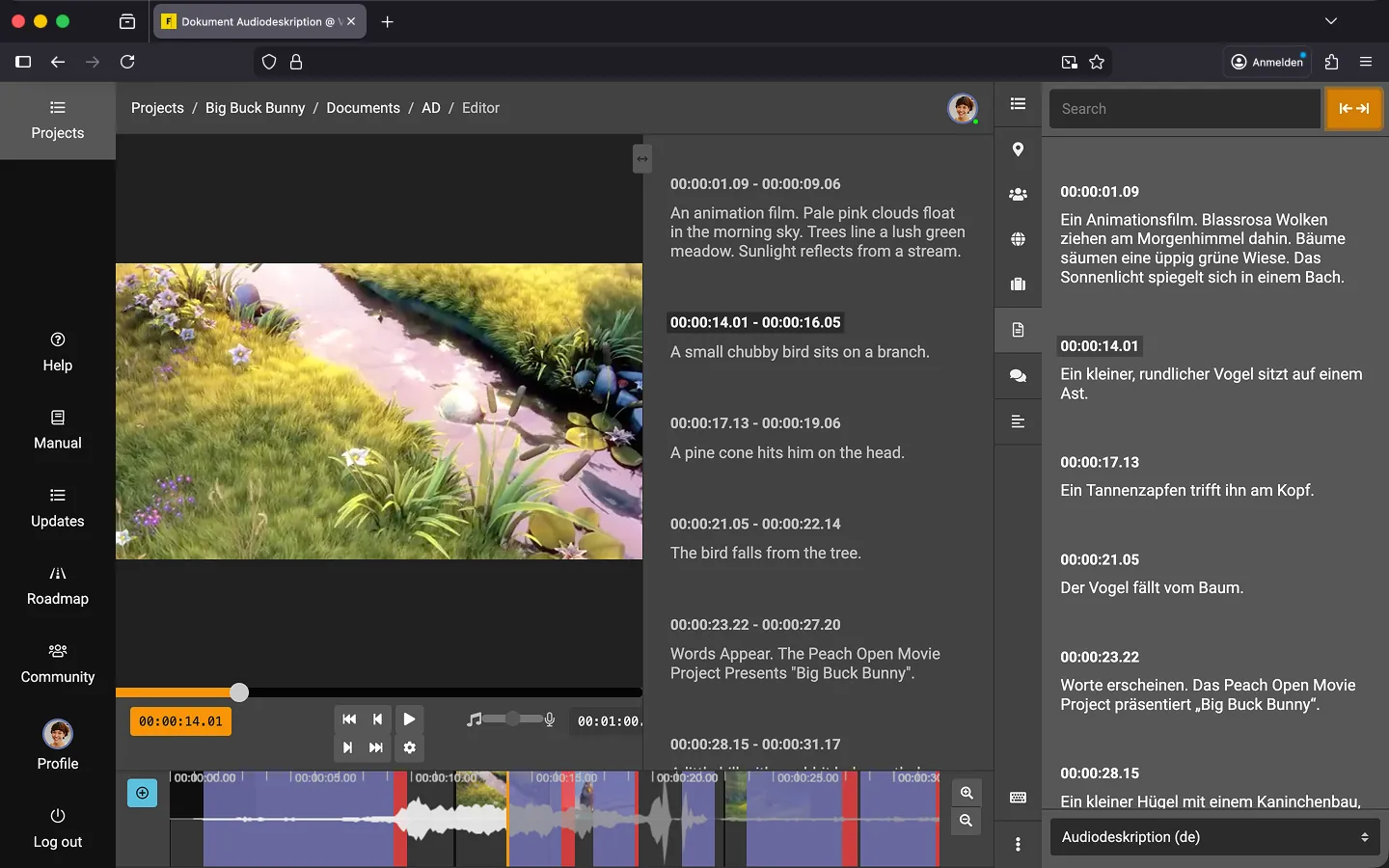
Display two documents simultaneously within the editor. This allows you to view the original document on the right while making your changes in the current document.
How to Use Split View
This feature becomes available as soon as you have at least two documents in your project. Here are two common workflows:
A) Editing
- Create a copy of the original script.
- Open the copy in the editor.
- Open the new “Other Documents” tab in the toolbar on the right.
- Select the original script from the tab.
- You can now make your changes while simultaneously referencing the original text.
B) Translation
- Create a new document and import the original script.
- Run DeepL to generate an automated translation.
- Open the script translated by DeepL.
- Activate the new “Other Documents” tab in the toolbar on the right.
- Select the original script.
- You can now revise the translation while simultaneously referencing the original text.
Note: Click the double-arrow icon in the top-right corner (next to the search bar) to additionally display the text blocks of the second document on the timeline (shown as red bars).
Last Update: 2026/05/13