
Timeline
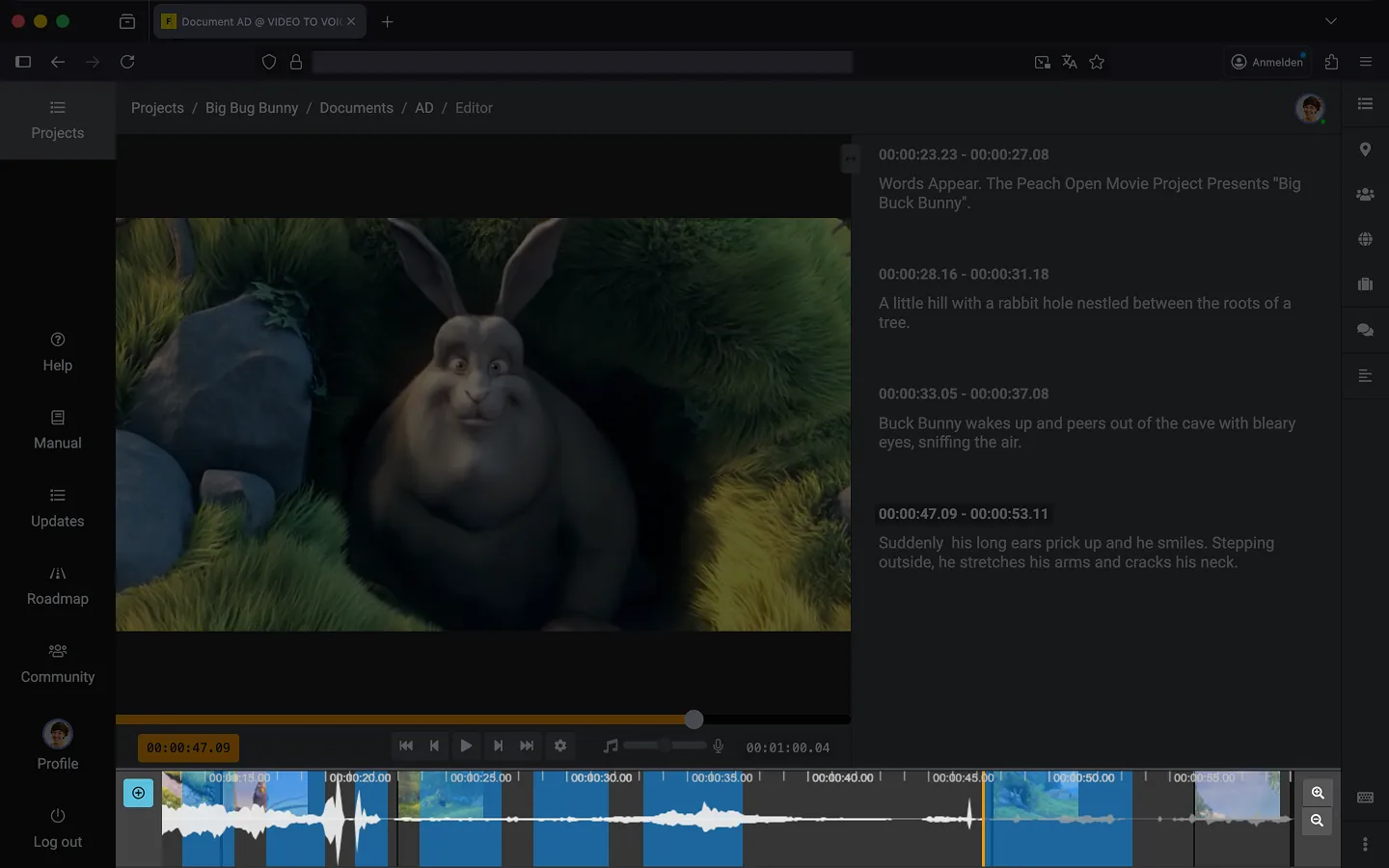
The timeline in Frazier is a graphical guide designed to help you precisely place your audio descriptions within the video.
Synchronized Playhead
The vertical orange line (playhead) marks your current position. It is locked in sync with the video player: if you move the playhead in the timeline, the video immediately snaps to the corresponding frame—and vice versa.
Time Markers
At the top of the timeline, there is a scale showing time markers (e.g., 00:00:05.00, 00:00:10.00).
Audio Waveform
The light grey waveform in the background visualizes the original video’s audio track.
Preview Thumbnails (Scene Cuts)
Small thumbnails mark scene cuts within the video. This visual feedback helps you recognize transitions at a glance.
Real-time Text Duration
The blue bars represent your individual description blocks. They show exactly when and for how long a description will be spoken. As you type or edit text in the script, the length of the corresponding blue bar adjusts in real-time. This provides immediate feedback on whether your text fits into the available gap.
Note: You can reposition the blue bars via drag-and-drop directly on the timeline. The timecodes will update automatically to reflect the new position.
Creating a Text Block
Click the blue + icon on the left edge of the timeline to add a new text block at the current position.
Zoom Controls
The zoom tools are located on the right edge of the timeline. Use the magnifying glass icons to zoom in for frame-accurate timing or zoom out to get a broader overview of your entire project.
Last Update: 2026/02/16