
Video Player
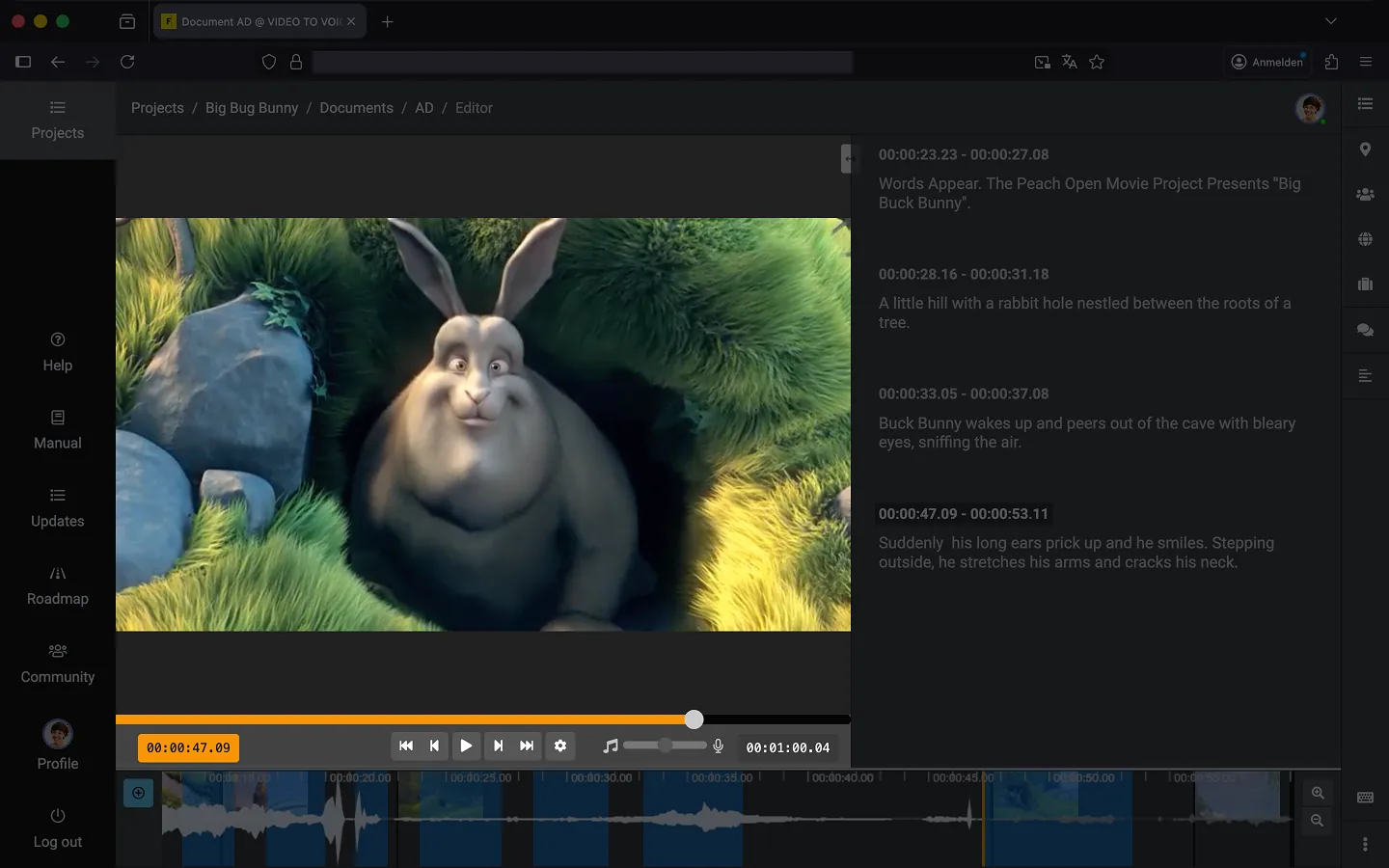
The video player is the central control element in Frazier. All controls are conveniently located directly below the preview window.
Timecodes
The current timecode is displayed on the left, while the total duration is shown on the right.
Tip: Click on the right timecode to toggle between the total duration and the remaining time.
Playback Controls
The playback controls are centered (from left to right):
- Seek back: 3 seconds
- Step back: 1 frame
- Play/Pause
- Step forward: 1 frame
- Seek forward: 3 seconds
Tip: For a faster workflow, we recommend using keyboard shortcuts.
Settings
To the right of the playback controls, you will find the Player Settings. Here you can adjust the playback speed, activate Picture-in-Picture (PiP) mode, or access the project settings.
Note: In Firefox, a native Picture-in-Picture icon may appear directly on the video surface.
Audio Balance
The slider on the right allows you to adjust the balance between the original video audio and the text-to-speech (TTS) preview. Moving the slider to the left increases the video volume, while moving it to the right emphasizes the TTS preview.
Tip: Use this slider if the original video audio is too quiet or if you want to focus more clearly on your generated descriptions.
Last Update: 2026/01/23